Eyoyo Barcode Scanner Manual: A Comprehensive Guide
This manual provides detailed instructions for Eyoyo barcode scanners, covering setup, operation, troubleshooting, and advanced features. Explore models like EY-011, EY-037, and EY-R30L.
Eyoyo barcode scanners are versatile tools designed to streamline data capture across various industries. From retail and warehousing to logistics and healthcare, these scanners offer efficient and accurate barcode reading capabilities. Eyoyo provides a range of scanners, including handheld, wearable ring scanners, and industrial-grade models, catering to diverse operational needs.
These scanners support both 1D and 2D barcode symbologies, enabling the decoding of QR codes, Data Matrix codes, and more. Many Eyoyo models offer multiple connectivity options – Bluetooth, 2.4G wireless USB dongle, and wired USB – providing flexibility in integration with different devices and systems. Some advanced models even feature offline storage, capable of holding thousands of barcodes for later upload. This manual will guide you through the features and functionalities of your Eyoyo scanner.
Understanding Different Eyoyo Models
Eyoyo offers a diverse portfolio of barcode scanners tailored to specific applications. The EY-011 is a popular 3-in-1 model with an adjustable stand, supporting Bluetooth, 2.4G wireless, and USB wired connections, ideal for retail environments. For demanding industrial settings, the EY-037 provides rugged durability and waterproof (IP65) performance with wireless charging.
The EY-R30L is a unique wearable ring scanner, offering hands-free operation for warehouse picking and inventory management. Different models also vary in features like offline storage capacity (up to 10,000 barcodes) and compatibility with applications like Shopify and Walmart GIF 2. Understanding these distinctions will help you select the optimal Eyoyo scanner for your needs.
Eyoyo EY-011: Features and Specifications
The Eyoyo EY-011 is a versatile 2D QR barcode scanner boasting 3-in-1 connectivity: Bluetooth, 2.4G wireless (via included USB dongle), and USB wired. It features an adjustable stand for hands-free operation and supports both 1D and 2D barcode scanning. This model excels in screen scanning and offers auto-sensing capabilities for seamless operation with smartphones, tablets, and PCs.
Key specifications include internal offline storage for up to 10,000 barcodes, making it suitable for areas with intermittent connectivity. It’s compatible with applications like Chromebooks, Shopify, and the Walmart GIF 2 app. The EY-011 is designed for ease of use and broad application.
Eyoyo EY-037: Industrial Grade Scanner Overview
The Eyoyo EY-037 is a rugged, heavy-duty industrial barcode scanner designed for demanding environments. It features an IP65 waterproof rating, ensuring durability against dust and water exposure. This 2D scanner offers 3-in-1 connectivity – Bluetooth wireless, USB, and hands-free operation via its included wireless charging stand.
Ideal for applications requiring a low Total Cost of Ownership (TOC) and superior quality, the EY-037 excels in scanning both 1D and 2D QR codes. It’s built for reliability in challenging conditions, making it a perfect choice for warehouses, logistics, and industrial settings.
Eyoyo EY-R30L: Wearable Ring Scanner Details
The Eyoyo EY-R30L is a 1D wireless wearable ring finger barcode scanner, offering hands-free operation for increased efficiency. This compact design allows for comfortable and continuous scanning, ideal for logistics, warehousing, and retail environments. The user manual details specifications, product usage instructions, and frequently asked questions to ensure optimal performance.
Users can enable Interleaved 2/5 barcode scanning and connect the EY-R30L via Bluetooth or USB. Its ergonomic design minimizes fatigue during prolonged use, streamlining workflows and boosting productivity. Explore the manual for detailed guidance on maximizing its capabilities.
Setting Up Your Eyoyo Scanner
Initial setup of your Eyoyo scanner is straightforward. Begin by ensuring adequate charging; connect the scanner using a USB cable. Once charged, power on the device. Connection options include Bluetooth, a 2.4G wireless USB dongle, and a direct USB wired connection.

To connect via Bluetooth, access the scanner’s settings and pair it with your desired device. For the 2.4G wireless connection, insert the USB dongle into your computer. A wired connection simply requires plugging the scanner into a USB port. Refer to the specific model’s manual for detailed pairing instructions.

Initial Charging and Powering On
Before first use, fully charge your Eyoyo scanner. Connect the provided USB cable to the scanner and a power source. A charging indicator light will illuminate, typically red while charging and turning green upon completion; Charging time varies by model, but generally takes a few hours.
To power on the scanner, locate the power button – often the scan button itself. Press and hold the button for a few seconds until the device vibrates or displays a power-on indicator. Some models require a longer press (8 seconds or more) until a beep and blinking blue light are observed.
Connecting via Bluetooth
To connect via Bluetooth, first ensure your scanner is in pairing mode. This often involves pressing and holding the scan button until a Bluetooth indicator light flashes. On your host device (smartphone, tablet, or computer), navigate to the Bluetooth settings menu and search for available devices.
Locate your Eyoyo scanner in the list – it will likely appear as “Eyoyo BT 2D” or a similar designation. Select the scanner to initiate pairing. You may be prompted to enter a pairing code; if so, try “0000” or “1234”. Once paired, the Bluetooth indicator on the scanner will typically become solid.
Connecting via 2.4G Wireless USB Dongle
For a 2.4G wireless connection, plug the included USB dongle into an available USB port on your computer. The scanner should automatically detect and connect to the dongle. If it doesn’t, power cycle the scanner – turn it off and then back on. Ensure the scanner is set to 2.4G mode; some models have a switch or require a configuration change via software.
The scanner and dongle should establish a connection within seconds, indicated by a solid indicator light. No driver installation is typically needed, as the dongle functions as a standard HID device. This method offers a reliable, plug-and-play experience for many applications.
Connecting via USB Wired Connection
To connect via USB, simply plug the provided USB cable into the scanner and an available USB port on your computer. The scanner will typically be recognized automatically as a standard HID device, eliminating the need for driver installation. This method provides a stable and reliable connection, ideal for continuous scanning operations.
Ensure the USB cable is securely connected at both ends. Once connected, the scanner is ready for immediate use. This wired connection also allows the scanner to charge while in use, extending operational time. It’s a straightforward and dependable solution for various scanning tasks.
Operating Your Eyoyo Scanner
Efficient operation of your Eyoyo scanner involves mastering several key techniques. Begin by familiarizing yourself with the scan button’s function – a short press initiates a scan, while a longer press (around 8 seconds) may activate Bluetooth pairing or reset the device. For optimal results, position the barcode squarely within the scanner’s field of view, maintaining a comfortable distance.
Explore offline storage mode (available on select models) for uninterrupted scanning even without a constant connection. Understanding these basics will maximize your scanner’s performance and streamline your workflow, ensuring accurate and rapid data capture.

Scanning Barcodes: Best Practices
Achieving optimal scanning performance requires adherence to a few simple best practices. Ensure the barcode surface is clean and free from scratches or damage, as imperfections can hinder readability. Position the scanner perpendicularly to the barcode, maintaining a distance of several inches – experimentation may be needed for different barcode types.
Avoid angling the scanner excessively, and ensure sufficient ambient light. For challenging barcodes, adjust the scanner’s settings (if available) or try different scanning angles. Consistent application of these techniques will significantly improve scan success rates and minimize errors.
Understanding Scan Button Functions
The scan button on your Eyoyo scanner is central to its operation. A short press typically initiates a single scan, attempting to decode the barcode in its field of view. Holding the scan button for an extended period – around 8 seconds, as noted for some models – often activates pairing mode for Bluetooth connections.
Newer models may feature a single, multi-functional scan button. Tapping this button accesses settings via a dedicated app. Understanding these functions is crucial for seamless operation and customization. Refer to your specific model’s documentation for precise button behavior.
Activating Offline Storage Mode (for models with this feature)

Certain Eyoyo scanners, like the EY-011, boast internal offline storage capable of holding up to 10,000 barcodes. This feature is invaluable when a real-time connection to a host device isn’t possible. Activation procedures vary by model; consult your specific scanner’s manual for detailed steps.
Generally, enabling offline storage involves navigating the scanner’s settings menu, often accessible through the scan button or dedicated software. Once activated, scanned barcodes are stored internally and can be uploaded later when a connection is re-established. This ensures continuous data capture.
Troubleshooting Common Issues
Encountering problems with your Eyoyo scanner? Common issues include barcode recognition failures, Bluetooth connectivity problems, and charging difficulties. If the scanner isn’t reading barcodes, ensure proper lighting and barcode quality. For Bluetooth issues, try re-pairing the device or checking for interference.

If charging fails, verify the USB cable and power adapter; A reset might resolve some problems – hold the scan button for 8+ seconds until a blue light flashes. Refer to the manual for model-specific troubleshooting steps. Contact Eyoyo support if issues persist.
Scanner Not Recognizing Barcodes
If your Eyoyo scanner fails to recognize barcodes, several factors could be at play. First, ensure the barcode is undamaged and of good print quality. Insufficient lighting can also hinder scanning; provide adequate illumination. Verify the scanner is configured to read the specific barcode symbology being used.
Try adjusting the scanning distance and angle. Clean the scanner window with a soft cloth. If the problem persists, a scanner reset (holding the scan button for 8+ seconds) might help. Confirm compatibility with the barcode type and application.
Bluetooth Connection Problems
Experiencing Bluetooth connectivity issues with your Eyoyo scanner? Begin by ensuring Bluetooth is enabled on both the scanner and the host device (smartphone, tablet, or computer). Verify the scanner is in pairing mode – often indicated by a blinking blue light. Remove any previously paired devices from the host device’s Bluetooth settings.
Attempt to re-pair the scanner. Ensure the scanner is within range of the host device. Interference from other wireless devices can sometimes cause problems; move away from potential sources. A scanner reset may also resolve connection difficulties.
Scanner Not Charging
If your Eyoyo scanner isn’t charging, first inspect the charging cable and port for any visible damage. Try a different USB cable and power adapter to rule out faulty accessories. Ensure the power adapter is providing sufficient power – a 5V/1A adapter is generally recommended. Clean the charging port on the scanner with compressed air to remove any dust or debris.
Leave the scanner connected to the charger for an extended period, even if it doesn’t immediately show signs of charging. A complete discharge may require longer to initiate charging. If the issue persists, contact Eyoyo support for assistance.
Advanced Features and Settings
Eyoyo scanners offer customizable settings to optimize performance. Enabling Interleaved 2/5 barcode scanning expands compatibility with specific inventory systems. Some models allow customization via dedicated software, offering control over prefix/suffix characters and data transmission.
Seamless integration with applications like Shopify and Walmart GIF 2 is achievable through proper configuration. Explore the scanner’s settings to ensure compatibility with your chosen platform. Utilize the scan button hold function (8 seconds) for Bluetooth pairing, as detailed in user guides. Regularly check for firmware updates to unlock new features and improvements.
Enabling Interleaved 2/5 Barcode Scanning
Eyoyo scanners often support Interleaved 2/5 barcode symbology, crucial for logistics and warehousing. To enable this, access the scanner’s settings menu – typically through a configuration guide or software. Consult your specific model’s manual (EY-R30L, EY-011, or EY-037) for precise instructions, as the process varies.
This feature enhances compatibility with systems requiring this specific barcode format. Ensure the scanner is properly configured to recognize and decode Interleaved 2/5 codes accurately. Incorrect settings can lead to scanning errors. Test thoroughly after enabling to confirm successful decoding;
Customizing Scanner Settings via Software (if applicable)
Some Eyoyo barcode scanner models, like the EY-011, may offer software for advanced customization. This software allows users to modify settings beyond the scanner’s physical buttons. Options include adjusting scan trigger duration, enabling/disabling specific barcode symbologies, and configuring prefix/suffix characters.
Check the Eyoyo website or included documentation to determine if your model supports software configuration. Download and install the appropriate software, then connect your scanner via USB. Explore the software interface to fine-tune settings for optimal performance within your specific applications, such as Shopify or Walmart GIF 2.
Using with Specific Applications (Shopify, Walmart GIF 2, etc.)
Eyoyo scanners are compatible with numerous applications. For Shopify, ensure the scanner inputs data as text, and configure Shopify to recognize the barcode format. With Walmart GIF 2, the scanner must accurately capture and transmit the required barcode symbology.
Users have confirmed Eyoyo scanners work with Chromebooks and the Cognex scanner app. Some models require enabling Interleaved 2/5 barcode scanning for specific systems. Consult the application’s documentation for barcode requirements and adjust scanner settings accordingly via software or button combinations.
Maintenance and Care
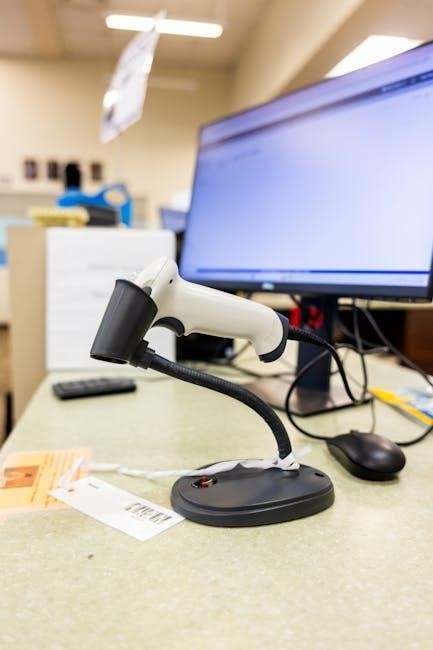
To ensure optimal performance and longevity of your Eyoyo barcode scanner, regular maintenance is crucial. Clean the scanner lens frequently with a soft, lint-free cloth to remove dust and debris. Avoid harsh chemicals or abrasive cleaners.
When not in use, store the scanner in a dry, safe location, protected from extreme temperatures and humidity. Review the warranty information for specific coverage details and limitations. Proper care will help maintain the scanner’s accuracy and reliability, preventing potential issues and extending its lifespan.
Cleaning Your Eyoyo Scanner
Regular cleaning is essential for maintaining the accuracy and functionality of your Eyoyo barcode scanner. Always disconnect the scanner from any power source before cleaning. Use a soft, lint-free cloth lightly dampened with isopropyl alcohol to gently wipe the scanner’s exterior and the scan window.
Avoid using abrasive cleaners, solvents, or excessive moisture, as these can damage the device. Pay particular attention to the scan window, ensuring it is free from dust, dirt, and smudges. A clean scan window guarantees optimal barcode reading performance and prevents errors.
Storage Recommendations
Proper storage extends the lifespan of your Eyoyo barcode scanner. When not in use, store the scanner in a cool, dry environment, away from direct sunlight, extreme temperatures, and humidity. A protective case or pouch is recommended to prevent physical damage from impacts or scratches.
Avoid storing the scanner with other objects that could potentially damage it. Ensure the scan window is protected from dust and debris during storage. Regularly check the scanner’s condition, especially after prolonged periods of inactivity, before resuming operation.

Warranty Information
Eyoyo barcode scanners are covered by a standard manufacturer’s warranty against defects in materials and workmanship. The warranty period typically begins from the date of purchase, and specific duration varies by model – consult your product documentation for details.
This warranty does not cover damage resulting from misuse, accidents, unauthorized modifications, or normal wear and tear. To initiate a warranty claim, contact Eyoyo customer support with proof of purchase and a detailed description of the issue.